Start here
Set up your books
The fourteen set-up steps, what each is for, and which can wait.
How it works
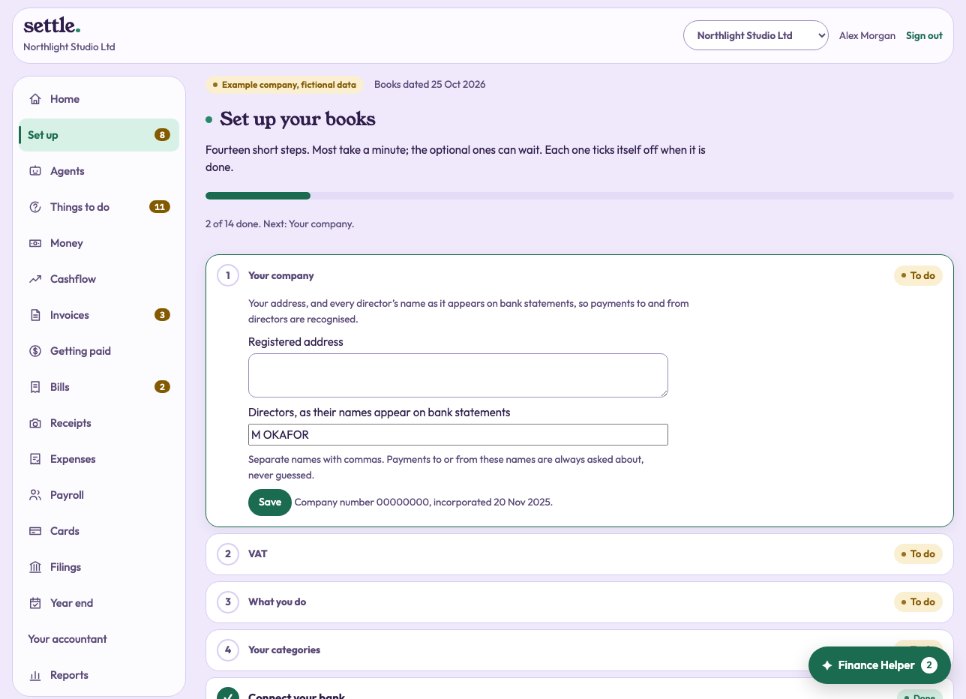
Set up is in the menu, with a count of the steps left. One step is open at a time. Each ticks itself off when it is done, however you did it, so you can also do things from their own screens.
The steps
Your company: the registered address, and every director’s name as it appears on bank statements, so payments to and from directors are recognised. VAT: registered (number, date, quarters) or not. What you do. Your categories. Connect your bank. Only the company’s accounts. Where your books start. Payroll: add everyone paid through payroll, or confirm no one is. Then, optional: Sending invoices, Bills by email (your own forwarding address, or Gmail or Outlook), Card and online sales, Your team. Last: Your Bookkeeper, where you choose how much it does by itself.
Your regular payees
Once your bank is in, we read every payment and pick out the names that make up most of them, up to 40. The ones we recognise are listed with their category: change any that are wrong, then press These are right. The rest are asked one at a time: tap what the payment is, such as A customer paying us, or Goods or materials we sell or use in our work. Our guess is highlighted, but nothing is filed until you tap. Each answer files every payment from that name and is remembered for new ones. Not sure? Press Not sure: ask me later and it waits in Things to do.
Where your books start
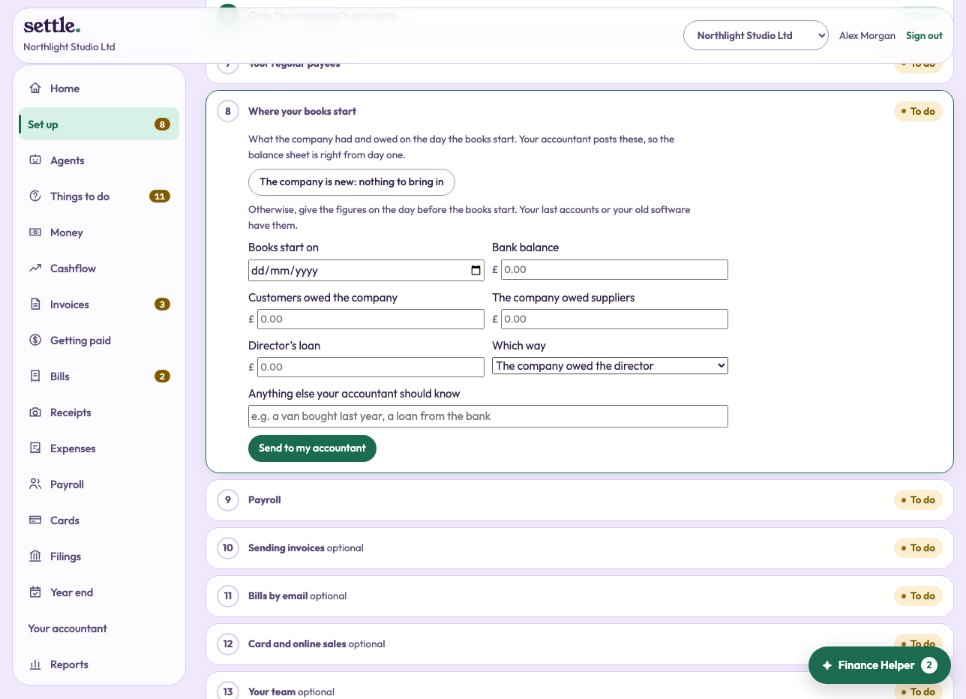
If the company is new, press The company is new: nothing to bring in. Otherwise give the figures on the day before the books start: the bank balance, what customers owed the company, what the company owed suppliers, and the director’s loan and which way it runs, with a note if needed. Press Send to my accountant. Nothing is posted by itself: your accountant posts them as an opening journal, and the step then shows Posted by your accountant.
Skipping and coming back
Optional steps can be skipped and picked up later. Any step you confirmed or skipped can be opened again. Your VAT dates cannot be changed here once a VAT return is under way; ask your accountant.
Still stuck? Ask in the Finance Helper inside the app, or contact your accountant.